
App Configuration
App Configuration is where you manage common settings across all platforms. Configure branding assets, URLs, and store information for app distribution.
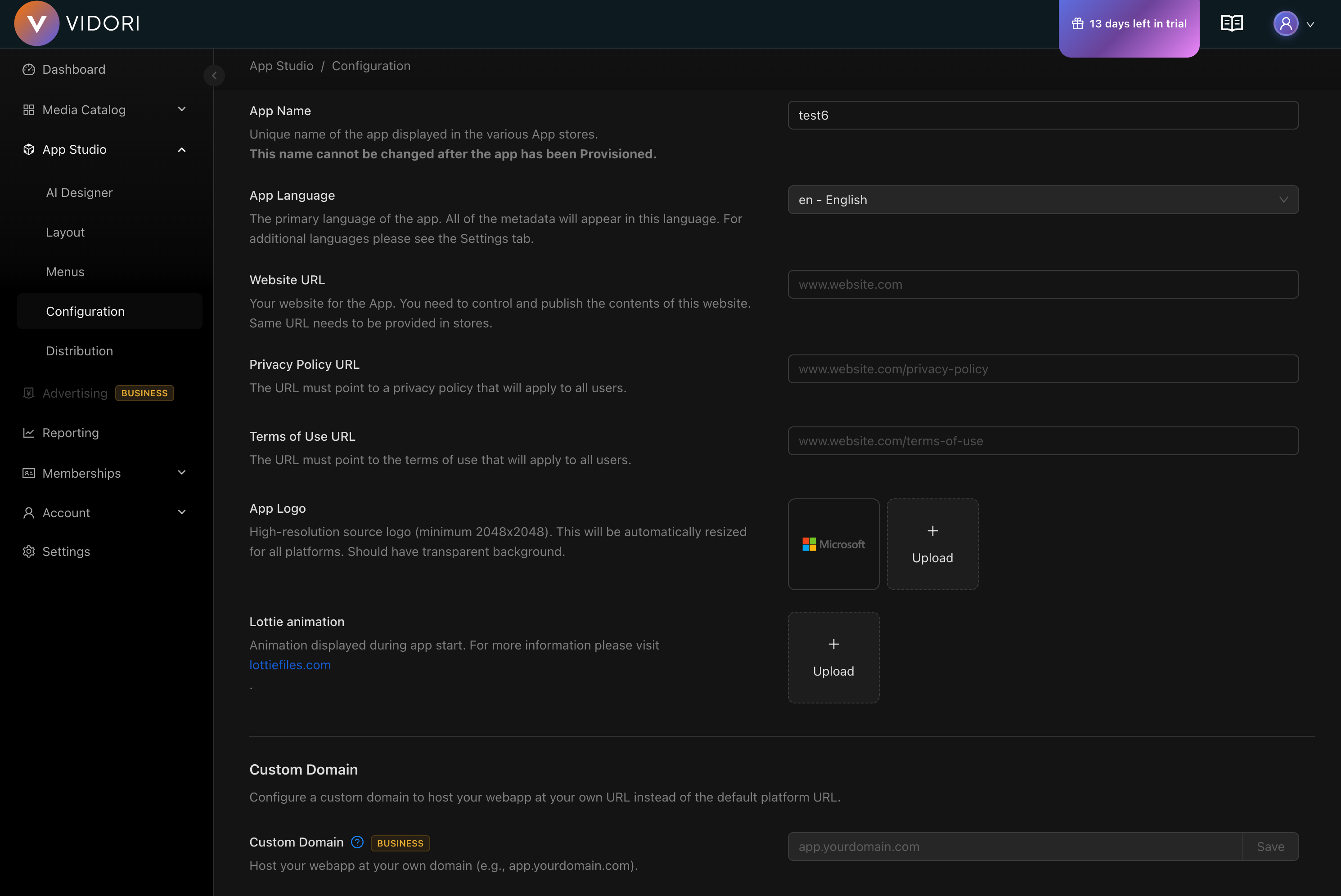
App Metadata
Section titled “App Metadata”Basic Information
Section titled “Basic Information”| Setting | Description | Editable |
|---|---|---|
| App Name | Your app’s name | No (set during provisioning) |
| App Language | Primary language | Yes |
| Display Names | Localized names | Yes (via Settings) |
Configure important links for your apps:
Website URL
Section titled “Website URL”Your official website. Must be:
- Controlled and published by you
- Accessible to app store reviewers
- Used for support and legal information
Privacy Policy URL
Section titled “Privacy Policy URL”Required for all app stores. Must:
- Be publicly accessible
- Apply to all users
- Describe data collection practices
Terms of Use URL
Section titled “Terms of Use URL”Optional but recommended:
- Outlines user responsibilities
- Defines service terms
- May be required by some platforms
Branding Assets
Section titled “Branding Assets”App Logo
Section titled “App Logo”Your primary brand mark. Used for:
- App headers and splash screens
- Loading states
- Promotional materials
Requirements:
- PNG or SVG format
- Transparent background recommended
- Minimum 512x512 pixels
App Icon
Section titled “App Icon”Icon for app stores and home screens:
- Square format required
- No transparency for iOS
- Platform-specific variants may be needed
Splash Animation
Section titled “Splash Animation”Optional Lottie animation for app startup:
- Create at LottieFiles
- JSON format
- Keep under 3 seconds
- Lightweight file size
Custom Domain
Section titled “Custom Domain”Set up a custom domain for your web app instead of the default yourapp.vidori.app URL.
-
Enter Your Domain
Go to App Configuration → Custom Domain and enter your desired domain (e.g.,
watch.yourbrand.com). -
Configure DNS
Add a CNAME record at your DNS provider:
Type Name Value CNAME watch yourapp.vidori.app -
Verify Domain
Click Verify to check DNS propagation. This may take up to 48 hours.
-
Activate
Once verified, your custom domain will be active and SSL will be provisioned automatically.
DNS Provider Guides
Section titled “DNS Provider Guides”Cloudflare:
- Go to DNS settings
- Add CNAME record
- Set proxy status to “DNS only”
GoDaddy:
- Go to DNS Management
- Add CNAME record
- Save changes
Route53:
- Go to Hosted Zones
- Create Record Set
- Choose CNAME type
Distribution Requirements
Section titled “Distribution Requirements”Before distributing to app stores, ensure:
| Requirement | Status |
|---|---|
| App Logo | Required |
| Privacy Policy URL | Required |
| Website URL | Required |
| App Icon | Required |
| Terms of Use | Recommended |
The configuration page shows validation errors for any missing requirements.
Auto-Save
Section titled “Auto-Save”Configuration changes are automatically saved as you type. A brief delay (500ms) prevents excessive saves while you’re still editing.
Look for the save indicator to confirm your changes are saved.
Multi-Language Support
Section titled “Multi-Language Support”For multi-language apps:
- Set your primary app language in Configuration
- Add display names in other languages via Settings → Languages
- All user-facing text will use the appropriate language based on viewer preferences