
On-Demand Videos
On-demand videos (VOD) are the core of your content library. This guide covers how to manage, organize, and optimize your video catalog.
Video Library
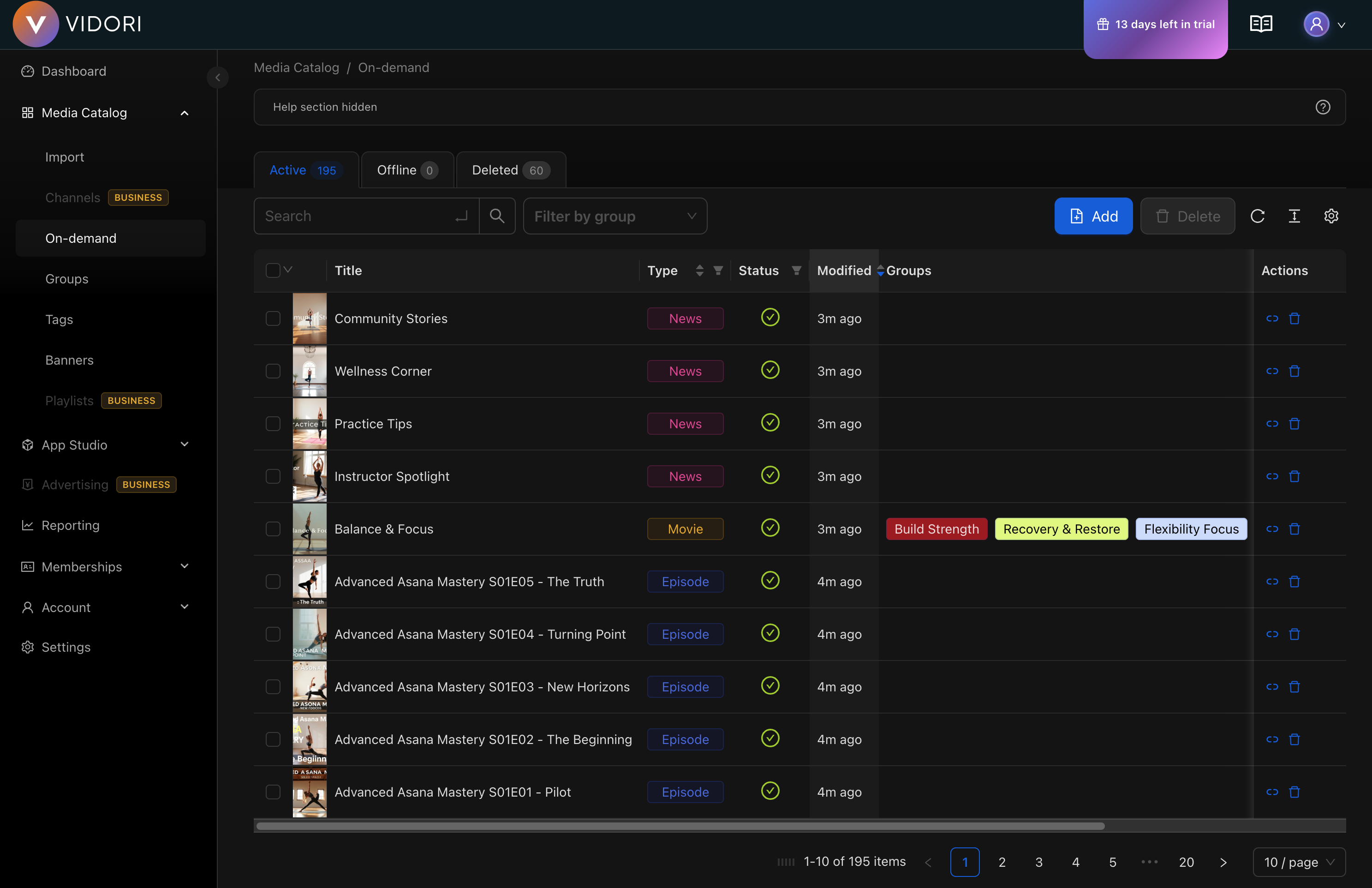
Section titled “Video Library”Access your VOD library at Catalog → On-Demand.
List View Features
Section titled “List View Features”- Search - Find videos by title, description, or ID
- Filter - By status, category, tags, or date
- Sort - By date, title, views, or duration
- Bulk actions - Select multiple videos for batch operations
Video Details
Section titled “Video Details”Click any video to open its detail panel:
Basic Information
Section titled “Basic Information”| Field | Description |
|---|---|
| Title | Display name shown to viewers |
| Description | Video summary and details |
| Duration | Auto-detected video length |
| Category | Primary content category |
| Tags | Keywords for organization and search |
Media Assets
Section titled “Media Assets”- Thumbnail - Auto-generated or custom upload
- Poster - Featured image for hero displays
- Preview clip - Short teaser (auto-generated)
Video Status
Section titled “Video Status”Videos can have the following statuses:
| Status | Description |
|---|---|
| Processing | Being transcoded |
| Ready | Available for viewing |
| Scheduled | Will publish at set date |
| Published | Live and viewable |
| Unpublished | Hidden from viewers |
| Error | Processing failed |
Editing Videos
Section titled “Editing Videos”-
Click on a video to open its sidebar
-
Modify any fields in the Publishing or Metadata tabs
-
Changes are saved automatically when you update a field
Changing Asset Type
Section titled “Changing Asset Type”You can convert a video between the following types: Movie, Series, Episode, News, and Podcast.
-
Open the video sidebar and go to the Publishing tab
-
In the Asset Information section, click the Type dropdown
-
Select the new type and confirm in the dialog that appears
Series & Podcast Management
Section titled “Series & Podcast Management”Series and podcasts can contain seasons and episodes. Both types support the same organizational structure.
Creating a Series or Podcast
Section titled “Creating a Series or Podcast”-
Import a video via Add (URL or file upload)
-
Open the asset sidebar and go to the Publishing tab
-
Change the type to Series or Podcast
The imported video remains available in the Video tab. You can now add seasons and episodes via the Episodes tab.
Managing Seasons
Section titled “Managing Seasons”Open a series or podcast and go to the Episodes tab to manage seasons.
Adding a season:
- Click the + button next to the season count
- Enter the season number in the dialog
- Click Create
Deleting a season:
- Navigate to the season using the pagination controls
- Click the delete button
- Confirm deletion — episodes in the season will be unlinked but not deleted
Assigning Episodes to a Series
Section titled “Assigning Episodes to a Series”-
Open an episode’s sidebar and go to the Metadata tab
-
Use the Series dropdown to select an existing series, or click Create at the bottom of the dropdown to create a new one
-
Select a Season from the dropdown (available after selecting a series)
-
Enter the Episode Number
-
Save your changes
Bulk Editing
Section titled “Bulk Editing”Edit multiple videos at once:
- Select videos using checkboxes
- Click Bulk Edit in the toolbar
- Choose fields to update
- Apply changes to all selected