
Live Channels
Live Channels let you create 24/7 linear streaming experiences, just like traditional TV. Perfect for FAST (Free Ad-Supported Streaming TV) channels or premium linear content.
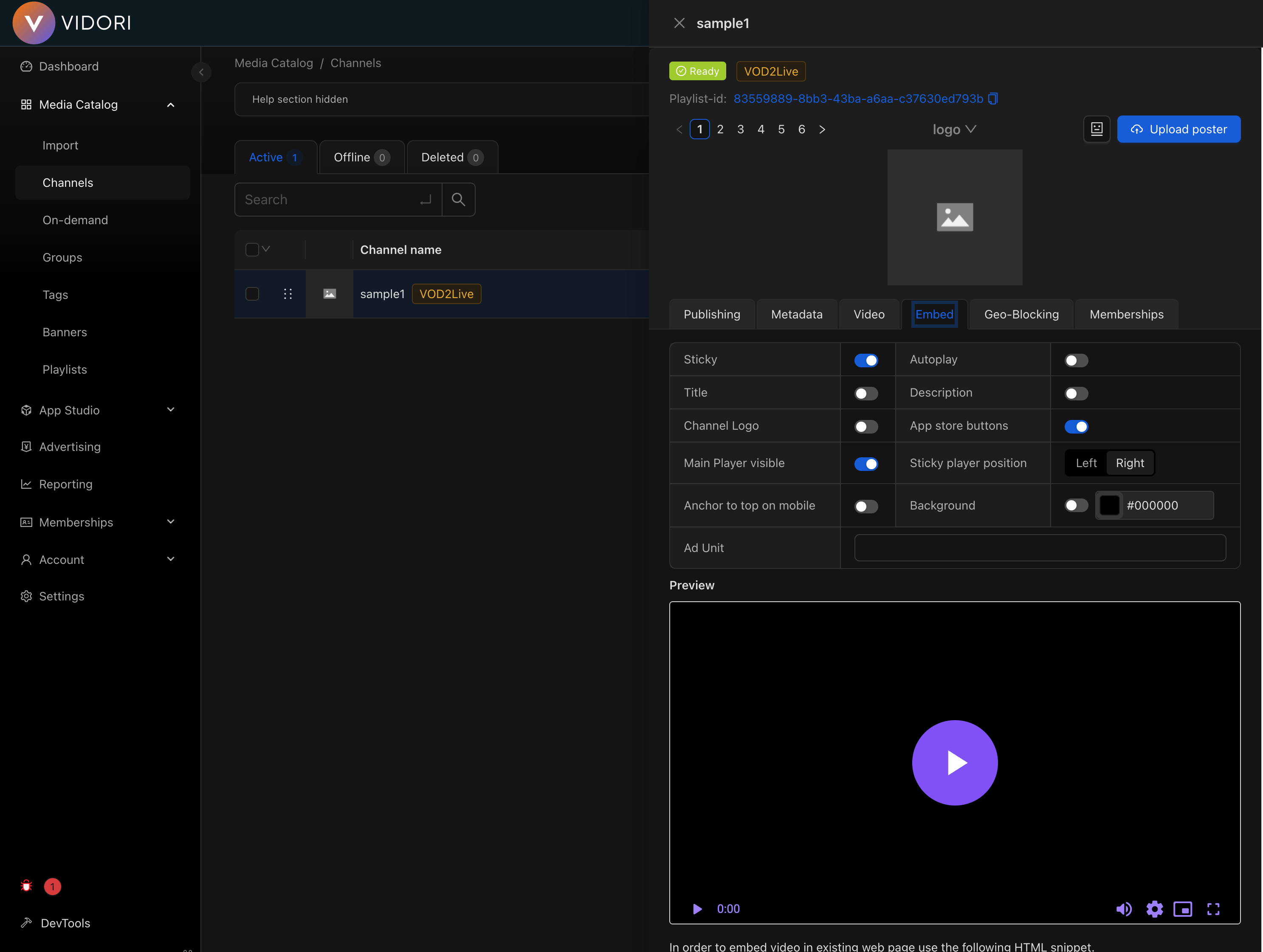
Channel Types
Section titled “Channel Types”Convert your on-demand library into a continuous linear stream.
- Automatically loops through playlists
- Schedule-based programming
- Low operational overhead
- Perfect for FAST channels
Broadcast live events in real-time.
- RTMP ingest support
- Low-latency streaming
- DVR capabilities
- Live chat integration
Schedule one-time broadcasts with automatic announcement and optional replay.
- Scheduled start time and duration
- Configurable announcement window (1 hour to 7 days before)
- Automatic recording and replay (Cloudflare CDN)
- Lifecycle: Scheduled → Upcoming → Live → Ended
See Live Events for the full guide.
Creating a Channel
Section titled “Creating a Channel”-
Go to Catalog → Channels
-
Click Create Channel
-
Choose channel type (VOD2Live, Live, or Live Event)
-
Configure basic settings:
- Channel name
- Description
- Thumbnail
- Category
-
Set up your content source (playlist or RTMP)
-
Configure monetization (optional)
-
Click Create
Live Streaming Setup
Section titled “Live Streaming Setup”Use RTMP ingest when you want to push a live stream from an encoder (OBS, Wirecast, vMix, etc.) through the Vidori CDN.
Getting Your Credentials
Section titled “Getting Your Credentials”- Open your channel
- Go to Settings → Stream
- Copy your Stream URL and Stream Key
URL: rtmp://ingest.vidori.co/liveKey: your-unique-stream-keyEncoder Settings
Section titled “Encoder Settings”Recommended settings for OBS, Wirecast, or vMix:
| Setting | Value |
|---|---|
| Codec | H.264 |
| Bitrate | 4,000-8,000 Kbps |
| Resolution | 1920x1080 |
| Framerate | 30 fps |
| Keyframe | 2 seconds |
| Audio | AAC, 128 Kbps |
Use an external manifest when your live stream is already being produced and delivered by another provider or CDN. Instead of pushing a stream through Vidori’s ingest infrastructure, you provide the manifest URL directly and Vidori uses it for playback.
- Go to Catalog → Channels
- Click Create Channel
- Choose Live as the channel type
- Enter the channel name
- Paste your HLS (
.m3u8) or DASH (.mpd) manifest URL in the External Manifest URL field - Click Create
The channel will be created in Ready state immediately — no RTMP/SRT ingest credentials are configured since the stream is delivered externally.
Supported manifest formats:
- HLS — URLs ending in
.m3u8 - DASH — URLs ending in
.mpd
When to use external manifests for live channels:
- Your live stream is produced and delivered by an external provider (e.g., Wowza, AWS MediaLive, Akamai)
- You want to aggregate live streams from multiple sources into a single channel lineup
- You have an existing CDN setup for live delivery and don’t need Vidori’s ingest infrastructure
- You are restreaming a third-party live feed (with permission) into your app
Distribution
Section titled “Distribution”Your channels are automatically available on:
- Embeddable Web player
- Desktop Web and Mobile Web
- iOS and Android native apps
- Connected TV apps (Roku, Fire TV, Apple TV)
- Third-party FAST platforms (with syndication enabled)