
Groups
Groups help you organize content into meaningful collections that can be displayed in your apps.
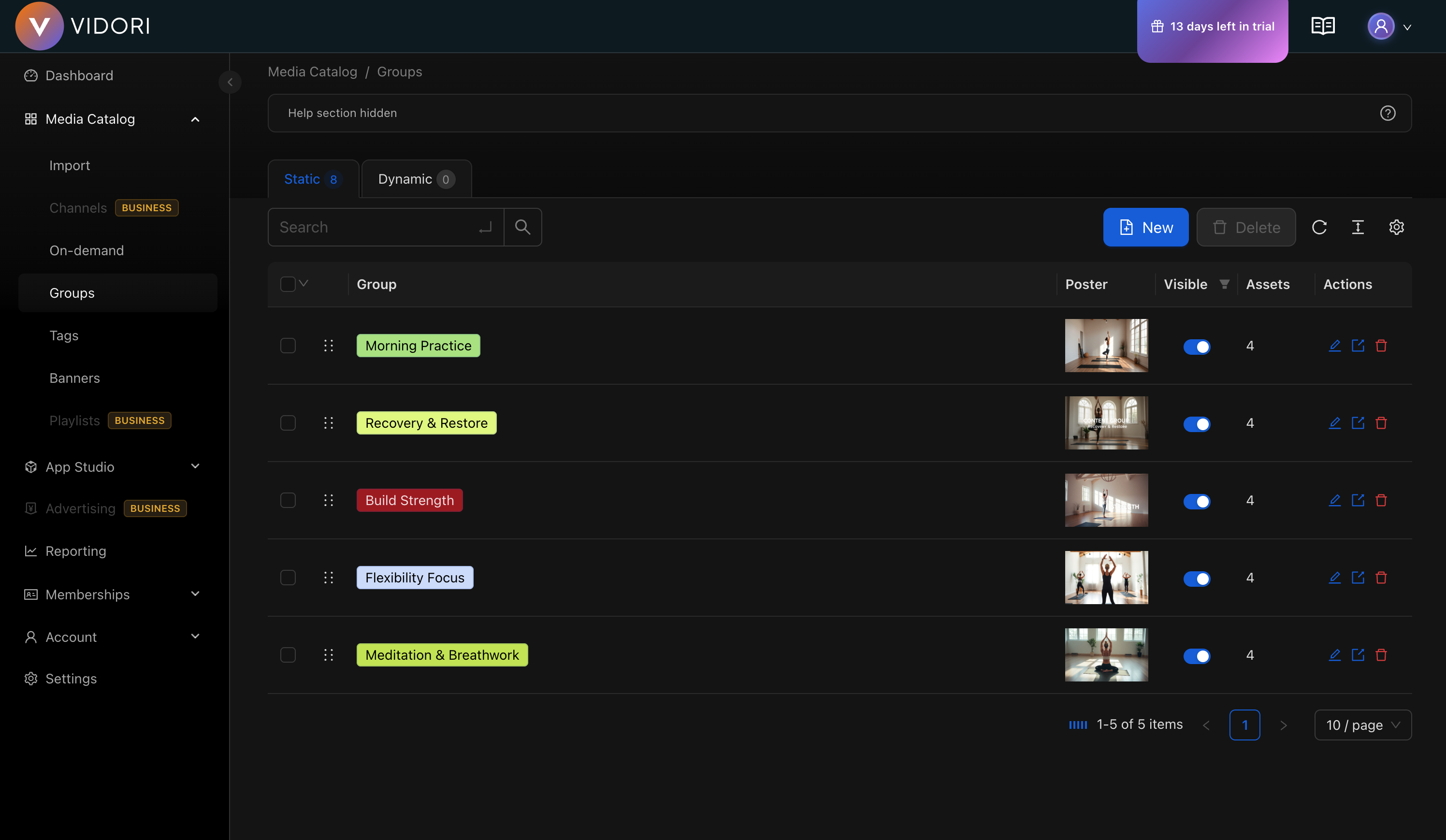
Group Types
Section titled “Group Types”Manually curated collections with specific videos in a set order.
Best for:
- Featured collections
- Curated playlists
- Specific ordered content
- Editorial picks
Auto-populated based on rules and filters.
Best for:
- “Latest uploads”
- Category-based collections
- Tag-based content
- Trending videos
Creating Groups
Section titled “Creating Groups”-
Go to Catalog → Groups
-
Click Create Group
-
Enter group details:
- Name (internal reference)
- Display title (shown to viewers)
- Description
- Thumbnail
-
Choose group type (Static or Dynamic)
-
Configure content (see below)
-
Click Save
Dynamic Group Configuration
Section titled “Dynamic Group Configuration”Filter Rules
Section titled “Filter Rules”Create rules to automatically populate your group:
| Filter | Description | Example |
|---|---|---|
| Category | Match content category | ”Movies” |
| Tags | Match specific tags | ”action”, “comedy” |
| Date | Published within timeframe | ”Last 30 days” |
| Duration | Video length range | ”Under 10 minutes” |
Rule Logic
Section titled “Rule Logic”Combine multiple rules:
- All rules (AND) - Video must match every rule
- Any rule (OR) - Video matches if any rule applies
Using Groups in Apps
Section titled “Using Groups in Apps”Groups appear in App Studio for use in your layouts:
- Go to App Studio → Layout
- Add a Content Row component
- Select your group as the data source
- Customize display settings