
On-Demand Videos
On-demand videos (VOD) are the core of your content library. This guide covers how to manage, organize, and optimize your video catalog.
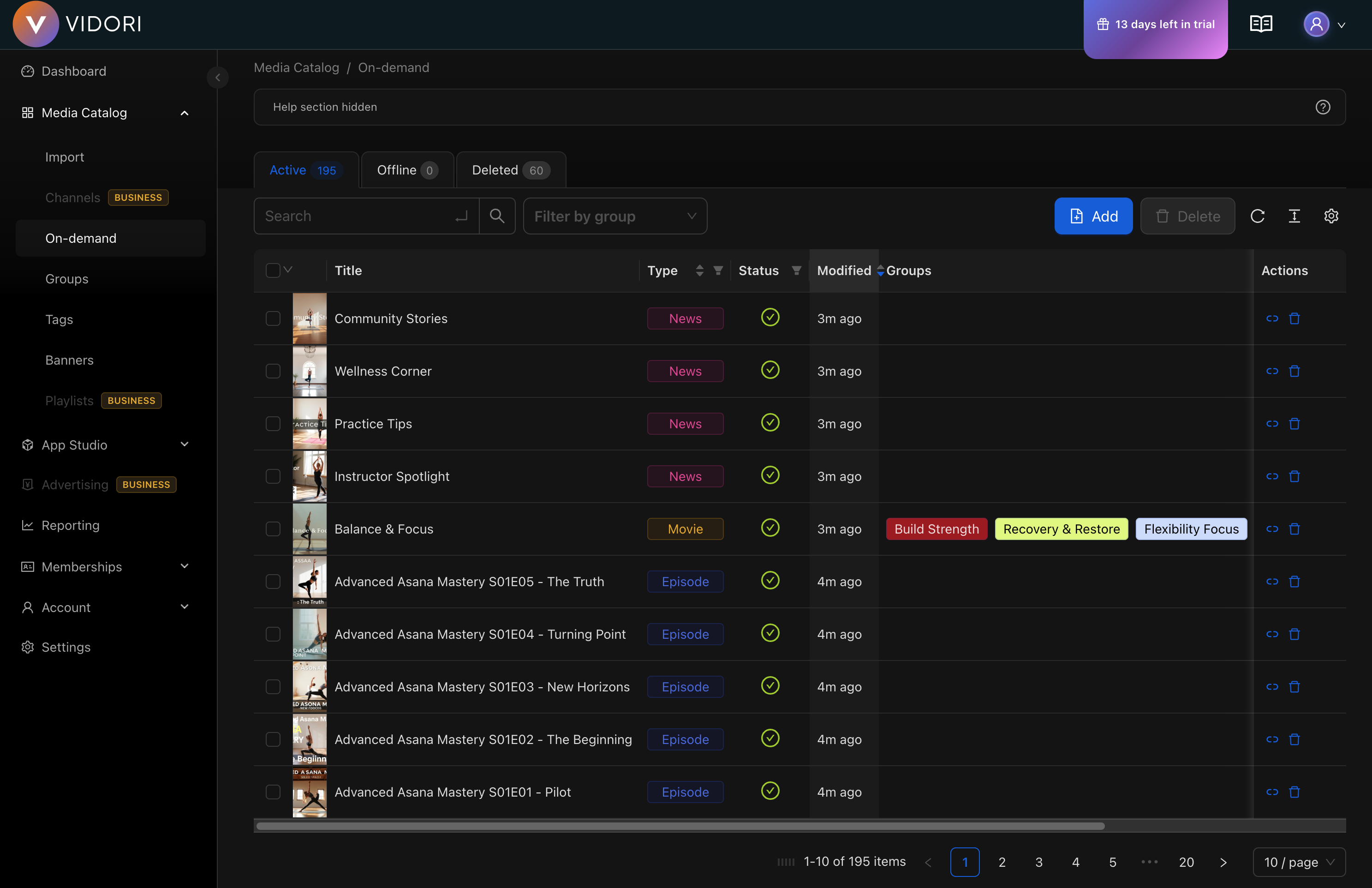
Video Library
Section titled “Video Library”Access your VOD library at Catalog → On-Demand.
List View Features
Section titled “List View Features”- Search - Find videos by title, description, or ID
- Filter - By status, category, tags, or date
- Sort - By date, title, views, or duration
- Bulk actions - Select multiple videos for batch operations
Video Details
Section titled “Video Details”Click any video to open its detail panel:
Basic Information
Section titled “Basic Information”| Field | Description |
|---|---|
| Title | Display name shown to viewers |
| Description | Video summary and details |
| Duration | Auto-detected video length |
| Category | Primary content category |
| Tags | Keywords for organization and search |
Media Assets
Section titled “Media Assets”- Thumbnail - Auto-generated or custom upload
- Poster - Featured image for hero displays
- Preview clip - Short teaser (auto-generated)
Video Status
Section titled “Video Status”Videos can have the following statuses:
| Status | Description |
|---|---|
| Processing | Being transcoded |
| Ready | Available for viewing |
| Scheduled | Will publish at set date |
| Published | Live and viewable |
| Unpublished | Hidden from viewers |
| Error | Processing failed |
Editing Videos
Section titled “Editing Videos”-
Click on a video to open details
-
Click Edit in the top right
-
Modify any fields
-
Click Save Changes
Bulk Editing
Section titled “Bulk Editing”Edit multiple videos at once:
- Select videos using checkboxes
- Click Bulk Edit in the toolbar
- Choose fields to update
- Apply changes to all selected