
Playlists
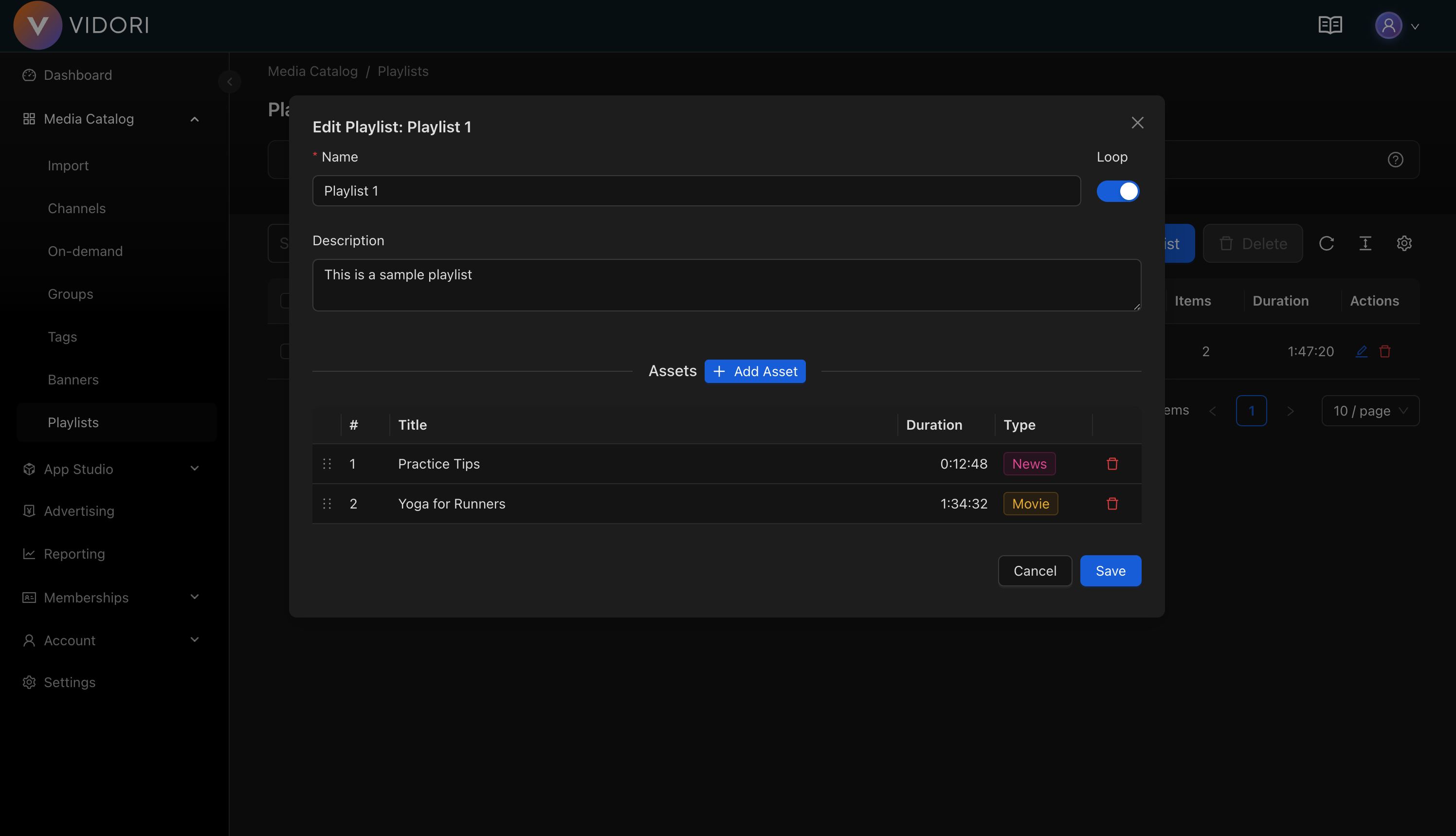
Playlists allow you to create curated sequences of videos that play back-to-back. Use them to create themed collections, binge-worthy series lineups, or scheduled programming blocks.
Playlist Types
Section titled “Playlist Types”| Type | Description | Use Case |
|---|---|---|
| Manual | Hand-picked video order | Curated collections, editor’s picks |
| Dynamic | Auto-populated from rules | New releases, popular content |
| Scheduled | Time-based programming | Daily shows, weekly highlights |
Creating a Playlist
Section titled “Creating a Playlist”-
Navigate to Playlists
Go to Catalog → Playlists and click Create Playlist.
-
Set Playlist Details
- Enter a name (supports multiple languages)
- Add a description
- Choose a thumbnail image
- Set visibility (public or unlisted)
-
Add Content
Add videos to your playlist:
- Search and select individual videos
- Import from existing groups
- Drag to reorder items
-
Configure Playback
Set playback options:
- Auto-play next video
- Loop playlist
- Shuffle option
-
Save and Publish
Click Save. The playlist is immediately available in your apps.
Managing Playlist Content
Section titled “Managing Playlist Content”Adding Videos
Section titled “Adding Videos”Add content to playlists in multiple ways:
- Search: Find specific videos by title
- Browse: Select from your catalog
- Bulk Add: Import entire groups or series
- Drag & Drop: Reorder items visually
Removing Videos
Section titled “Removing Videos”- Click the remove icon on any item
- Use bulk selection to remove multiple items
- Removing a video from a playlist doesn’t delete it from your catalog
Reordering
Section titled “Reordering”Drag videos to change their position in the playlist. The order determines playback sequence.
Dynamic Playlists
Section titled “Dynamic Playlists”Dynamic playlists automatically update based on rules you define:
Available Rules
Section titled “Available Rules”| Rule | Description |
|---|---|
| Tag | Include videos with specific tags |
| Group | Include videos from a content group |
| Recent | Most recently published content |
| Popular | Top-performing by views |
| Series | All episodes from a series |
Sort Options
Section titled “Sort Options”- Newest First - Most recent at the top
- Oldest First - Chronological order
- Most Popular - By view count
- Alphabetical - A-Z by title
- Random - Shuffled order
Limits
Section titled “Limits”Set a maximum number of items to include. Useful for “Top 10” style playlists.
Playlist Settings
Section titled “Playlist Settings”Playback Options
Section titled “Playback Options”| Setting | Description |
|---|---|
| Auto-Play | Automatically start the next video |
| Loop | Restart playlist after last video |
| Shuffle | Randomize playback order |
Visibility
Section titled “Visibility”- Public - Visible to all viewers
- Unlisted - Only accessible via direct link
- Private - Only visible to admins
Thumbnail
Section titled “Thumbnail”Choose how the playlist thumbnail is displayed:
- Auto - Uses the first video’s thumbnail
- Custom - Upload a custom image
- Mosaic - Grid of video thumbnails
Using Playlists in Your App
Section titled “Using Playlists in Your App”In Layouts
Section titled “In Layouts”Add playlists to your app layouts:
- Go to App Studio → Layout
- Add a Swimlane component
- Select “Playlist” as the content source
- Choose your playlist
As Landing Pages
Section titled “As Landing Pages”Link directly to a playlist from:
- Banners
- Menu items
- External marketing
Analytics
Section titled “Analytics”Track playlist performance:
- Playlist starts - How often viewers begin the playlist
- Completion rate - Percentage who finish all videos
- Drop-off points - Where viewers stop watching
- Average videos watched - Engagement depth
Best Practices
Section titled “Best Practices”-
Keep It Focused Stick to a theme or topic per playlist
-
Optimal Length 5-15 videos is ideal for most playlists
-
Strong Opening Lead with your most engaging content
-
Regular Updates Refresh playlists periodically to keep them relevant
-
Clear Naming Use descriptive names that tell viewers what to expect